TNE Institute MCP connector
Connect ChatGPT, Claude or another AI assistant to the TNE Institute. MCP server address: https://app.tneinstitute.com/mcp. Sign in with your platform account.
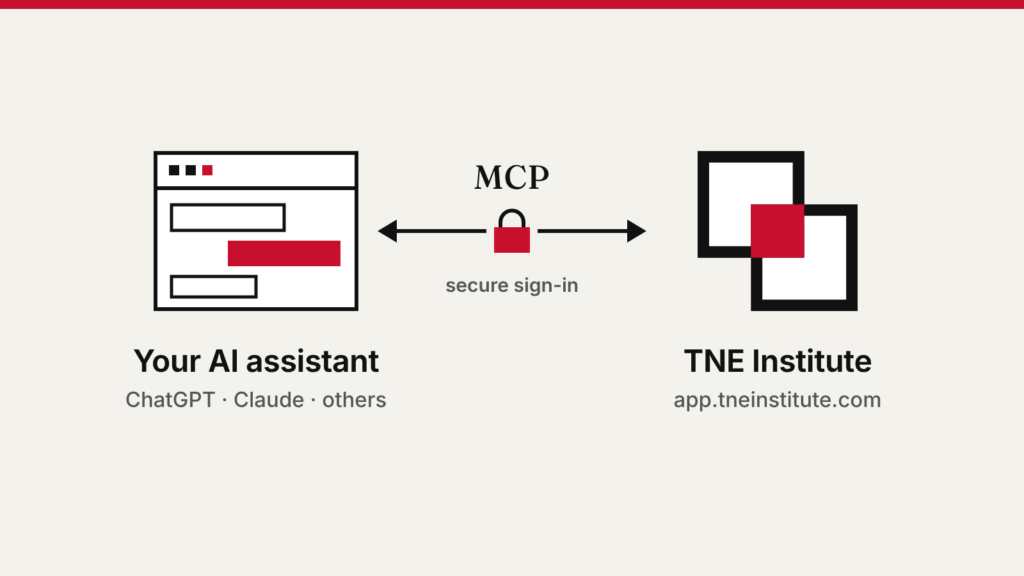
The connector
One address for every assistant
The TNE Institute connector lets an AI assistant work with your account on the TNE Institute platform. It can look things up for you and, if you allow it, help with routine work. It uses the Model Context Protocol (MCP), the open standard that ChatGPT, Claude and many other assistants use to connect to other services.
Add the address to your assistant as a custom connector. ChatGPT calls this a custom MCP server. The first time you use it, the assistant opens app.tneinstitute.com so that you can sign in and choose what it may do.
MCP server address
https://app.tneinstitute.com/mcp
Use this exact address. The website tneinstitute.com is not itself a connector, and the demonstration copy of the platform cannot be connected.
Who can connect
Who can connect an assistant
You need an account on the TNE Institute platform at app.tneinstitute.com, with a confirmed email address. At present these accounts can connect an assistant:
- Institute administrators
- Reviewers
- Institution managers
Fellows and applicants cannot connect an assistant yet.
Your assistant must also allow custom connectors. In ChatGPT and Claude this depends on your plan and, if you use them at work, on your organisation’s settings.
Claude
Connect Claude
Add the connector
Select Add to Claude on this page. Claude opens its Add custom connector box with the name and address filled in. Check them and confirm. You can also add it yourself: in Claude’s connector settings, choose Add custom connector and enter TNE Institute and https://app.tneinstitute.com/mcp.
Sign in
Claude asks you to connect. Sign in to the TNE Institute platform, choose how much the assistant may do and approve.
Ask
Start a chat and ask, for example, “Which applications are waiting for my review?” or “Is certificate FTNEI-2026-00001 genuine?”
ChatGPT
Connect ChatGPT
Open Plugins
In ChatGPT on the web, open Plugins, select the plus button, then Add custom MCP server.
Enter the address
Name it TNE Institute and enter https://app.tneinstitute.com/mcp as the server URL. Choose OAuth if you are asked how to sign in. Read the warning, then confirm to create it.
Sign in and ask
ChatGPT opens the TNE Institute platform. Sign in, choose how much the assistant may do and approve. Then, in a chat, type @, pick TNE Institute and ask your question.
Whether you can add custom MCP servers depends on your ChatGPT plan and, in a work or education workspace, on what your administrator allows.
Other assistants
Claude Code, VS Code, Cursor and other MCP clients
Any assistant or developer tool that supports remote MCP servers with OAuth sign-in can connect. Use the same address. The tool opens a browser window so that you can sign in.
Claude Code
claude mcp add --transport http tne-institute https://app.tneinstitute.com/mcpThen run /mcp in Claude Code to sign in.
VS Code
In .vscode/mcp.json:
{
  "servers": {
    "tne-institute": {
      "type": "http",
      "url": "https://app.tneinstitute.com/mcp"
    }
  }
}
Cursor
In ~/.cursor/mcp.json:
{
  "mcpServers": {
    "tne-institute": {
      "url": "https://app.tneinstitute.com/mcp"
    }
  }
}
Technical details
- Server address: https://app.tneinstitute.com/mcp (Streamable HTTP; every request is a POST, answered as JSON)
- Sign-in: OAuth 2.1 with PKCE and dynamic client registration. Metadata: https://app.tneinstitute.com/.well-known/oauth-protected-resource/mcp
- Scopes: tne:read, tne:write, tne:decide, tne:evidence and offline_access
What it can do
What the assistant can do
An assistant can only do what your own account can do on the platform. When you connect, you choose one of three levels. The Institute sets the highest level for each role, so your choice can be lower but never higher.
Read only
The assistant can look things up. It cannot change anything.
Read and routine changes
The assistant can also do routine work that can be undone, such as assigning a reviewer, adding a nomination or creating an invoice.
Full, including decisions
The assistant can also record decisions, such as a review decision or marking an invoice paid. It must show you a summary and ask you to confirm each one.
By role
- Everyone who can connect can check a certificate, search the Fellows directory and the public registers, and see their own applications, awards and nominations.
- Reviewers can see their review queue and the applications assigned to them, and record their review decisions.
- Institution managers can see their institutions and their Fellows, nominations and invoices, and nominate staff for Fellowship.
- Institute administrators can use the assistant for the administration work they do on the platform.
What applications say, such as statements, referee details and reviewers’ comments, is shared with an assistant only if the Institute allows it and you tick “Include what applications say” when you connect.
Your data
Your data, and how to disconnect
- What the assistant looks up is sent to the company that runs it, for example OpenAI for ChatGPT or Anthropic for Claude, and is handled under your agreement with them. Check your assistant’s data settings, including whether your chats are used to train its models.
- Records on the platform contain text written by other people. The connector tells the assistant to treat that text as information, never as instructions.
- Every change made through an assistant is recorded on the platform, with the assistant’s name.
- To disconnect, remove the assistant under Connected assistants on your profile at app.tneinstitute.com, or remove the connector in your assistant. The Institute can also switch assistants off at any time.
See our Privacy Policy for how we handle personal data.
FAQs
Frequently asked questions
What is the TNE Institute MCP server address?
https://app.tneinstitute.com/mcp. It is the only address for the TNE Institute connector. The website tneinstitute.com and the demonstration copy of the platform are not connectors.
Can ChatGPT connect to the TNE Institute?
Yes. In ChatGPT on the web, add https://app.tneinstitute.com/mcp as a custom MCP server from Plugins, then sign in with your TNE Institute platform account. Whether you can add custom MCP servers depends on your ChatGPT plan and workspace settings.
Is there a TNE Institute connector for Claude?
Yes. Use Add to Claude on this page, or add https://app.tneinstitute.com/mcp as a custom connector in Claude’s connector settings, then sign in with your TNE Institute platform account.
Do I need a TNE Institute account?
Yes. The connector works for people with an account on the TNE Institute platform at app.tneinstitute.com whose role allows assistants. At present that means Institute administrators, reviewers and institution managers.
Why does my assistant say “Sign in to the TNE Institute to use this connector”?
The assistant has not signed in yet, or its sign-in has expired. Reconnect the connector in your assistant and sign in again.
Can an assistant change things or make decisions for me?
Only if you allow it when you connect, and only up to the level the Institute sets for your role. A decision, such as recording a review decision, always needs your confirmation first, and every change is recorded.
Can I connect the demonstration site?
No. The demonstration copy of the platform uses shared sample accounts and has no connector. Connect to the live platform at https://app.tneinstitute.com/mcp.
How do I disconnect an assistant?
Remove it under Connected assistants on your profile at app.tneinstitute.com, or remove the connector in your assistant.
Need help connecting? Email contact@tneinstitute.com.